
AccuZIP Data Enhancement Services
HOW IT WORKS
With a database open in AccuZIP6, after you've performed address validation, and either while you're showing all records or a selection of records, pull down the Special menu to Data Enhancement Services
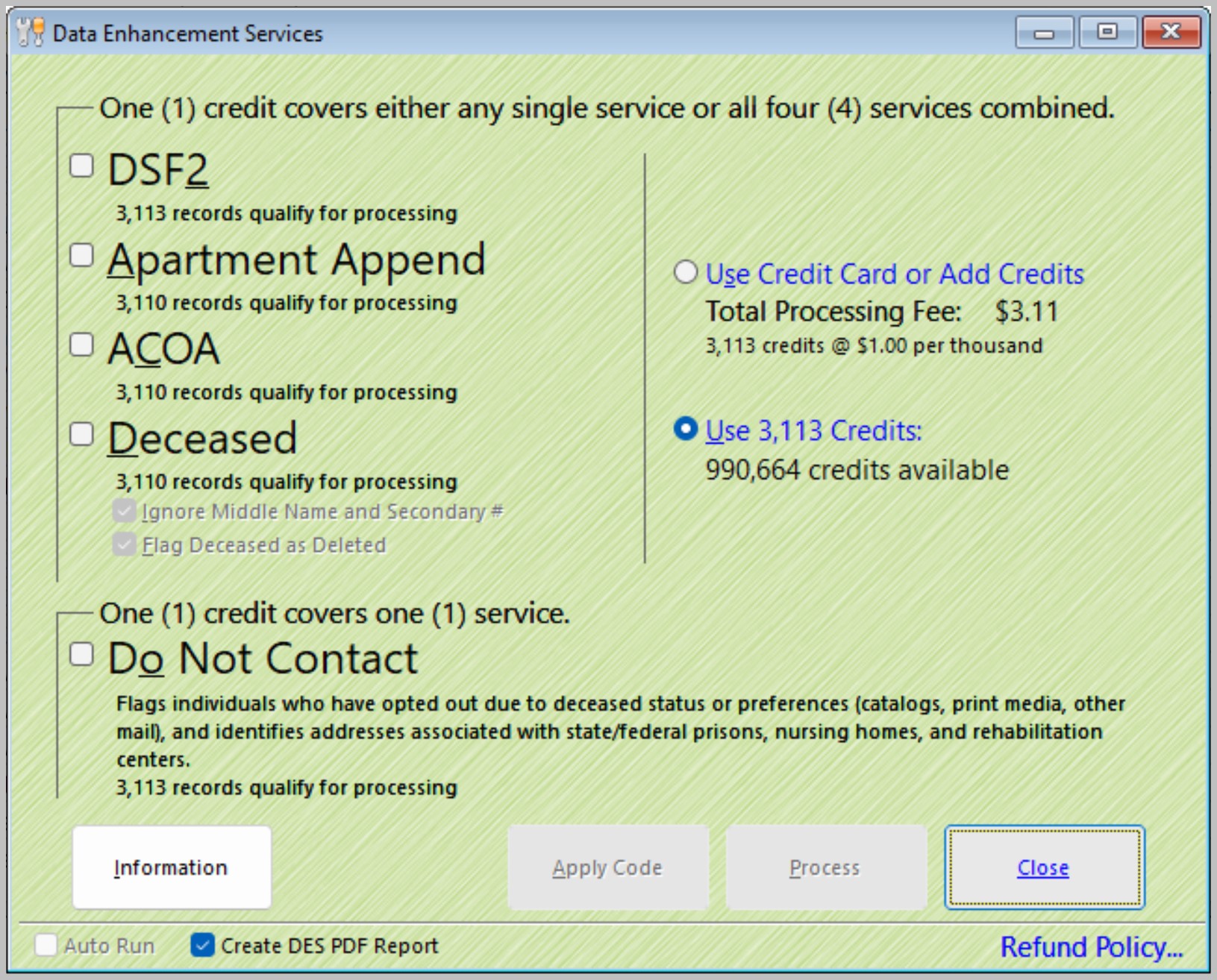
The Data Enhancement Services screen is divided into two sections.
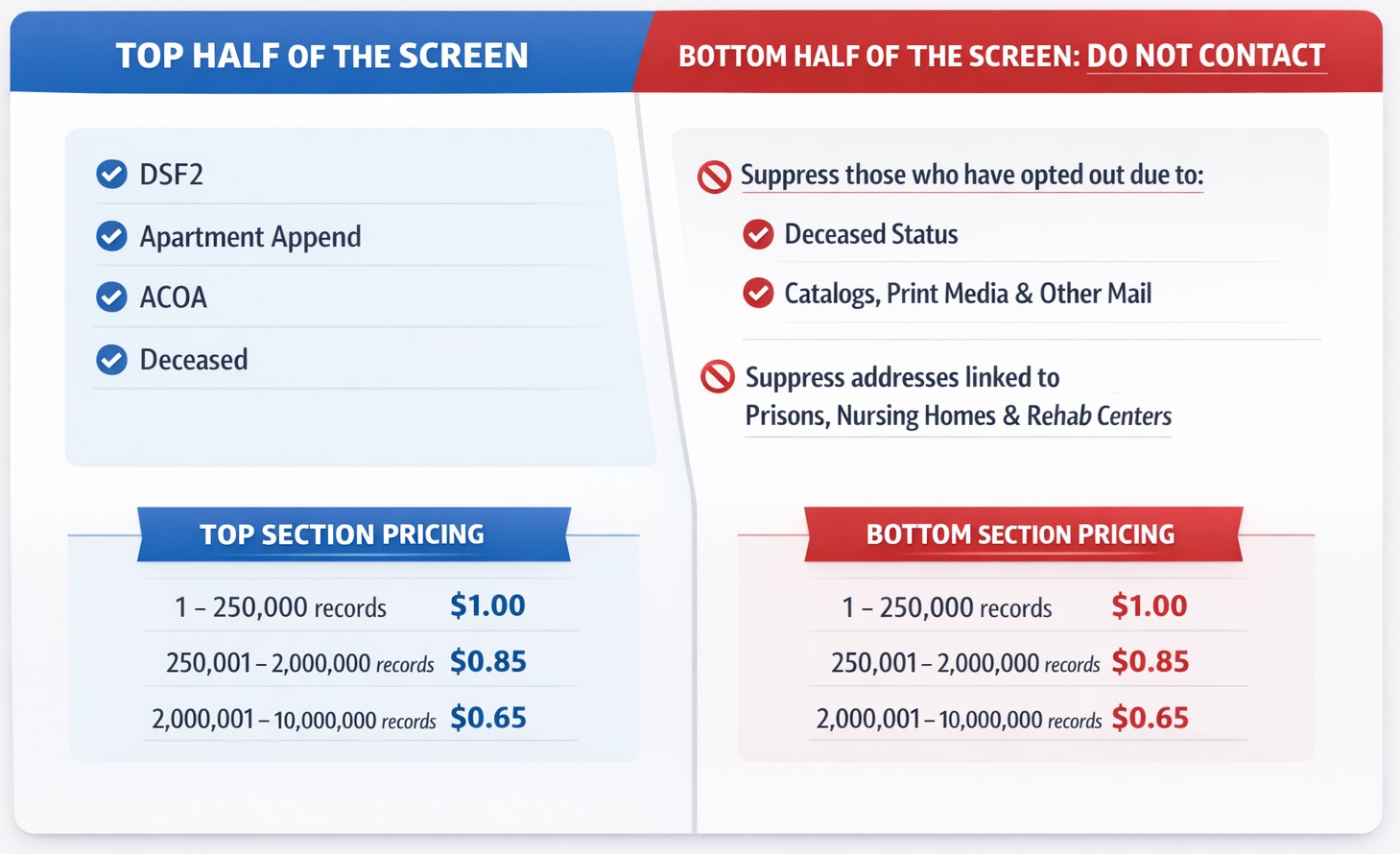
We don't round up. If you have 3100 records and select only DSF2 and ACOA, you're not charged $4.00. You're charged $3.10. If you process 100 records, you're charged a dime. If you choose DSF2 and the Do Not Contact option, you're charged $6.20 ($3.10 for the top half; $3.10 for the Do Not Contact option)
Five Example Ordering scenarios and their respective charges for a 3,100 record database:
- Scenario 1: You select DSF2 only. You're charged $3.10
- Scenario 2: You select DSF2, ACOA and Deceased Suppression. You're charged $3.10
- Scenario 3: You select only the Do Not Contact option. You're charged $3.10
- Scenario 4: You select the Do Not Contact option and Deceased Suppression. You're charged $6.20
- Scenario 5: You select the Do Not Contact, Deceased Suppression, DSF2, ACOA, and Apartment Append. You're charged $6.20
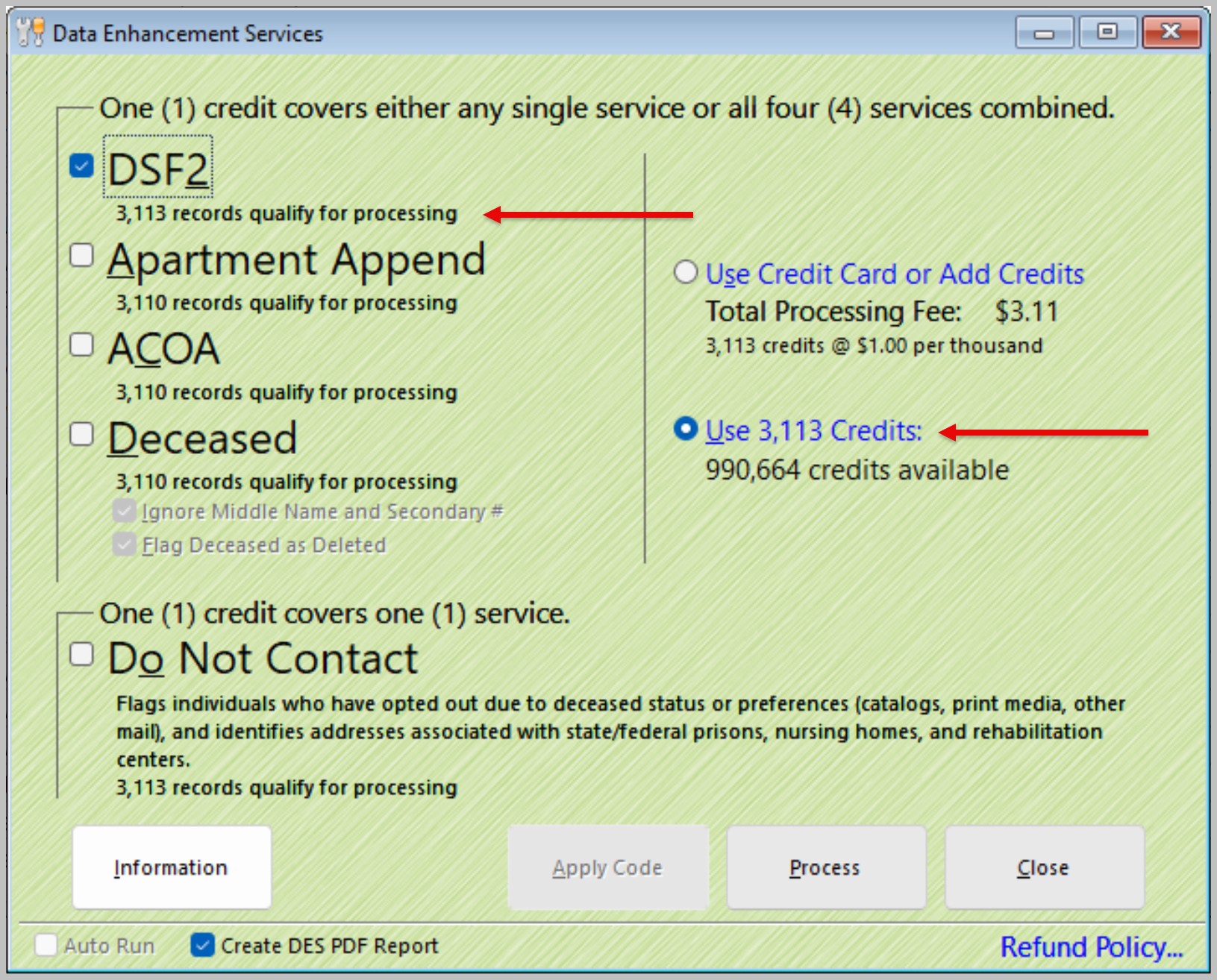
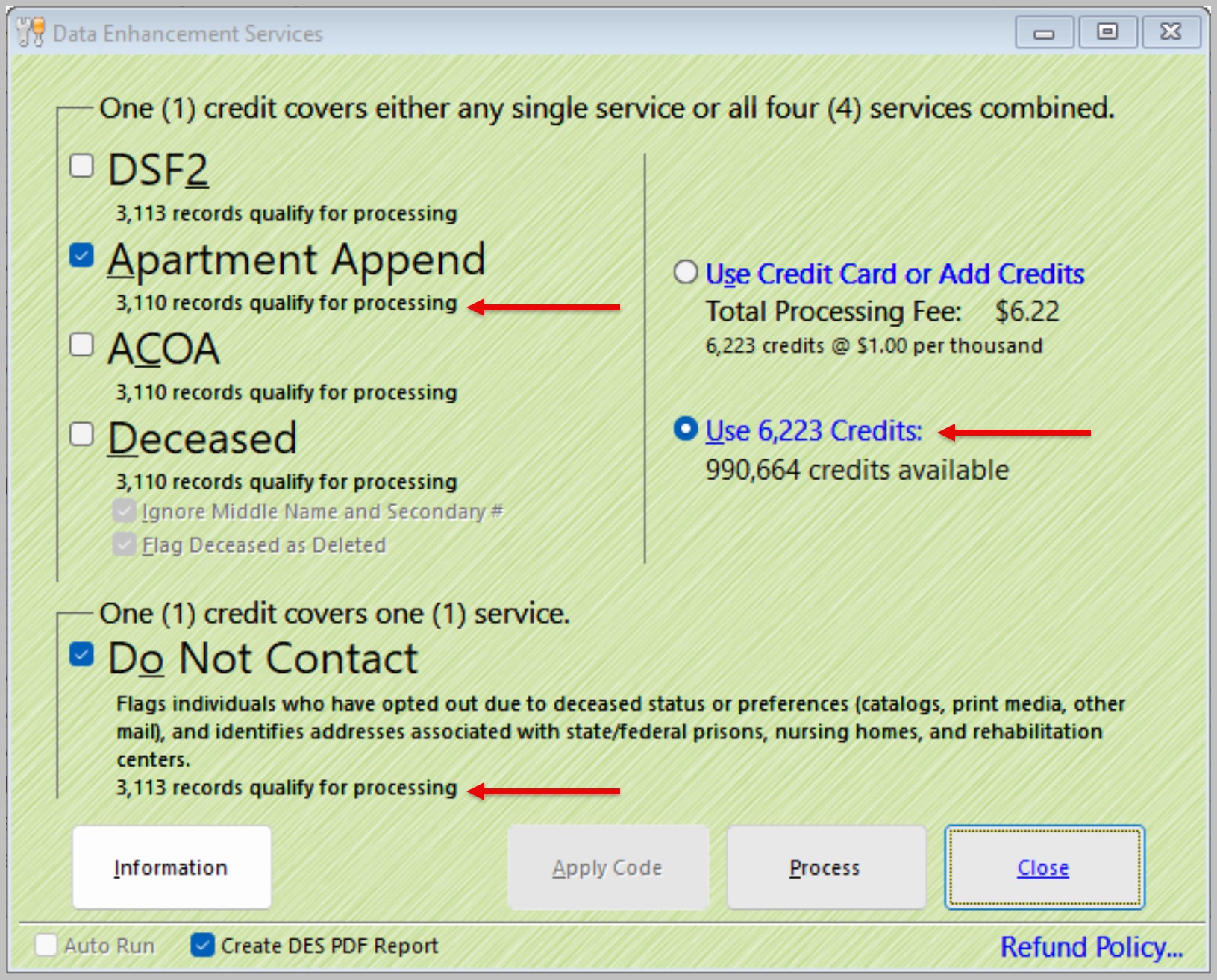
When you enter the Data Enhancement Services window, make a selection, and then the price (and number of credits needed) is calculated based on the number of records in your selection.
If you don't have enough credits to perform the Data Enhancement Service processing, click Buy, and you'll be taken to a screen to enter your credit card information. Enter your information, then click Process.
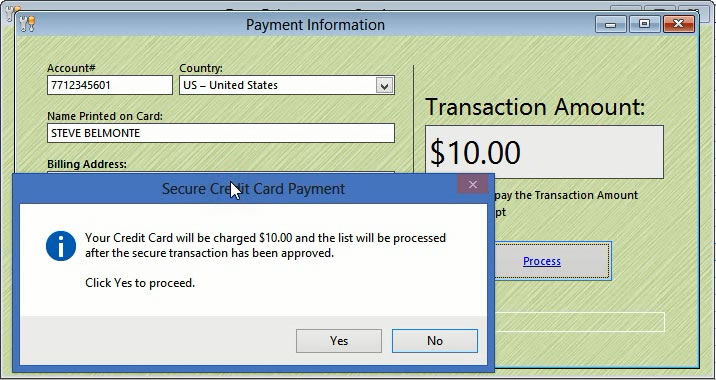
Your data will upload to our server, where it will be updated and have fields appended.
More information about each feature can be learned by clicking on the question mark button on the Data Enhancement Services screen, and by selecting the link at the bottom of this page.
While the file is processing on our server, you're free to close the monitor and close your database. This won't stop the process. Later, open your database, then pull down the Special menu to Monitor Data Enhancement Services...
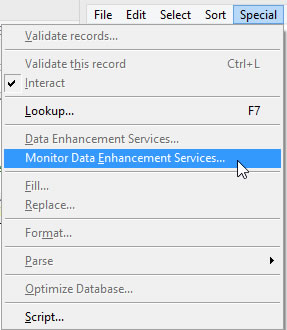
Your database will be updated with new information based on the Data Enhancement choices you selected.
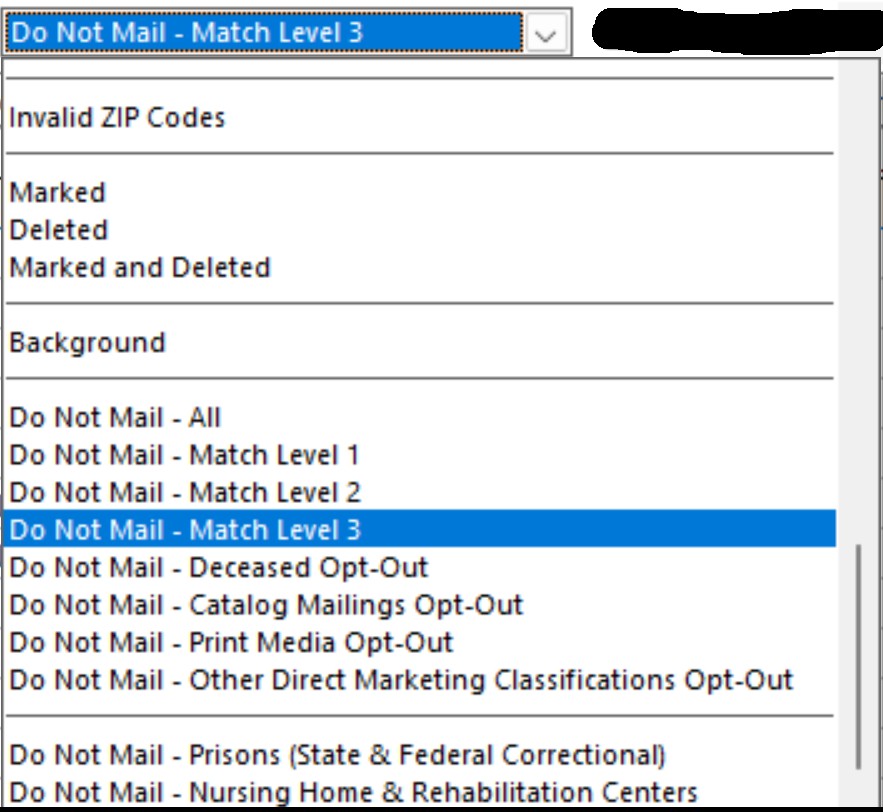
To search for specific groups of records that either had Data Enhancement appends to the addresses or to view any of the records from the Do Not Contact selection, click on the Show pull-down menu and choose the group you're interested in.
For instance, if you would like to delete all records that were found in the Do Not Mail list, perform the following moves:
- Click on the Show pull-down menu and choose Do Not Mail - All
- Pull down the Edit menu and choose Delete. Click on Selection.
- Now you can export the deleted records, or you can use Edit > Pack Database to permanently remove them from your address list, or do both.
- You can also use the Special menu > Fill feature to change the name in these records to Current Occupant in order to mail to the address, regardless of who lives there.
Data Enhancement Services Field Definitions and Values
Do Not Contact Field Definitions and Values:
dnmmatch_ — Do Not Mail Suppression Match Level
This field indicates the strength of the match against the suppression dataset.
Values:
· 1 = Matched on First Name, Last Name, Address, and ZIP Code (Highest confidence)
· 2 = Matched on Last Name, Address, and ZIP Code
· 3 = Matched on Address and ZIP Code
· Blank = No match
A value of 1, 2, or 3 confirms a suppression match and enables related suppression category flags.
Do Not Contact & Deceased Category Flags
If dnmmatch_ contains 1, 2, or 3, the following fields may populate depending on the applicable suppression category.
Each field contains:
· Y = Match
· Blank = No match
Columns:
· dnm_d_ — Deceased
· dnm_c_ — Catalog Mailings Opt-Out
· dnm_p_ — Print Media Opt-Out
· dnm_o_ — Other Direct Marketing Classifications
These fields allow customers to selectively suppress by opt-out type rather than applying blanket suppression logic.
Institutional Suppression Flags
The following columns identify institutional addresses that may be non-responsive or unsuitable for direct marketing.
Each field contains:
· Y = Match
· Blank = No match
Columns:
· sfpf_ — Prison Suppression (State & Federal Correctional Facilities)
· nhrc_ — Nursing Home & Rehabilitation Center Suppression