
PAF Management Activation
Follow these instructions to activate the Processing Acknowledgment Form (PAF) Management Activation feature, allowing you to create PAF's for your customers for whom you perform NCOALink processing.
- Launch AccuZIP6, then close the Open/Create screen
-
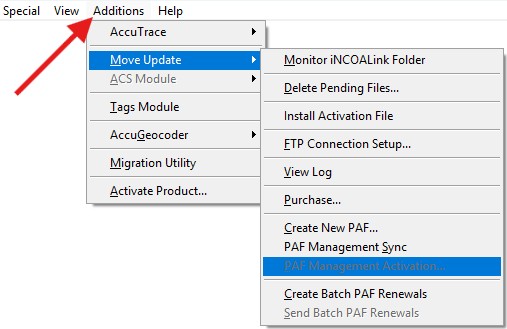
From the Additions menu, choose Move Update > PAF Management Activation
Enter your UUID into the PAF Management Activation screen. Don't have your UUID? Retrieve it from Chatbot by making this request:
I need a UUID for Account # 1111111111
(but use your 10-digit AccuZIP6 account number)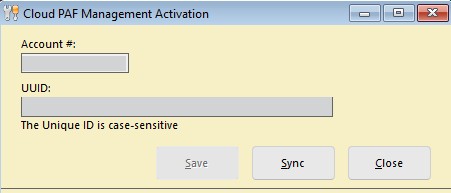
Click Save. What if nothing happens when I click Save?
- Open any database using File menu > Recent Databases or File menu > Open List
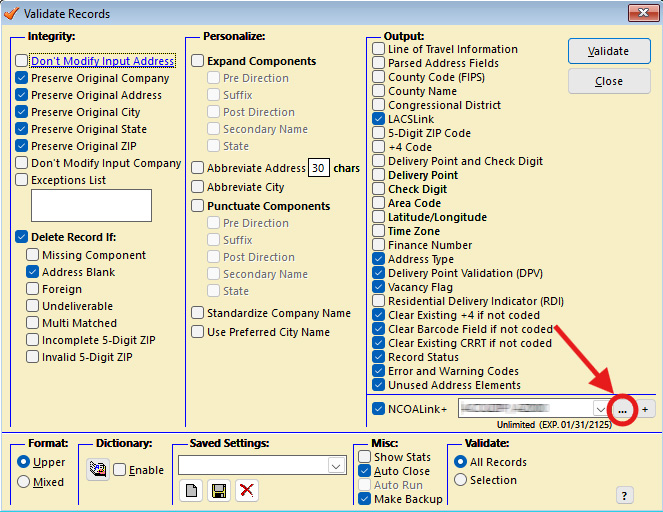
- Under the Special menu, choose Validate Records
- Select your company name from the NCOALink pull-down menu, then click on the ellipsis button to the right of the pull-down menu
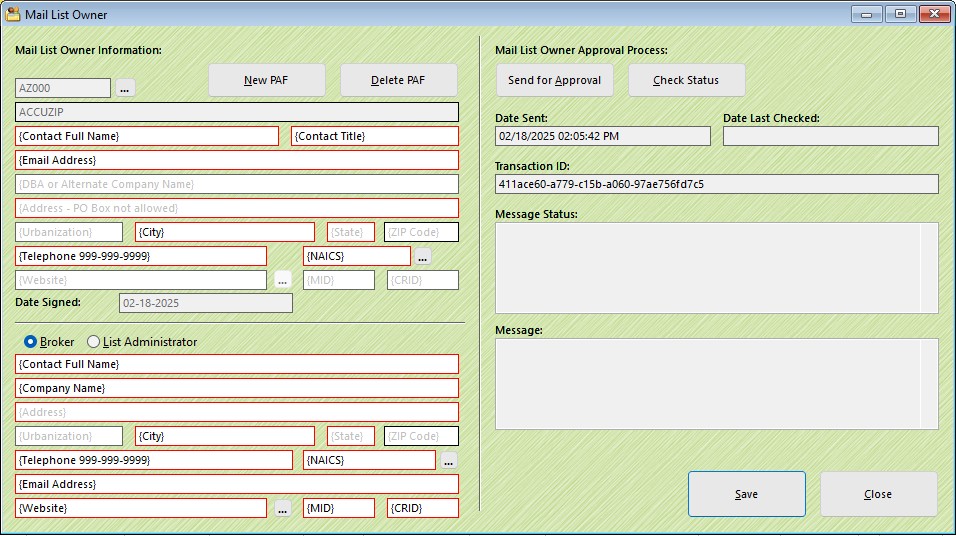
- In the Mail List Owner screen, make sure the Mail List Owner Information section is completely populated, as well as the Broker section. This means that every box that has a red border must be completed.
A special note about the Website in the Broker/List Administrator section:
Entering a web page URL in the Broker/List Administrator section is mandatory. When the Approve button is clicked in the USPS Processing Acknowledgement Form-Approval email (details of this appear below), the person who clicked on the Approve button will be directed to that web page. If you don't have a web page URL to enter into that box, you could use https://www.accuzip.com/forms/paf-thanks.htm, which is a generic "Thank You" page that doesn't have links to any other pages.
- Once completed, click Send for Approval.
Note the email address in the Mail List Owner information section. An email with the subject line USPS Processing Acknowledgement Form - Approval will be sent to that email address.
- Open the email and click on the blue Approve button.
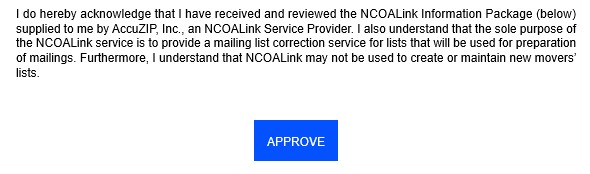
- Returning to the AccuZIP6 Validation screen, click on the ellipsis button next to the NCOALink pull-down menu again, and it should show that the PAF was approved with the Message box reading: The Mail List Owner approved the PAF.
What if nothing happens when I click Save after entering the UUID into the Cloud PAF Management Activation Screen?
This means the IP address of the registration server AccuZIP6 is trying to visit is being changed by your ISP, which prevents AccuZIP6 from reaching the server. To keep this from happening, follow the steps below.
- Open Notepad as administrator (Type NOTEPAD into your search bar, right-click on it, and choose Run As Administrator).
- In Notepad, pull down the File menu to Open. Navigate to C:\Windows\System32\drivers\etc and open the hosts file. Then copy and paste the following to the bottom of the file:
# To allow AccuZIP6 to properly connect to the registration server for DES and PAFMS
34.107.191.178 api.trackmypiece.app
# End of AccuZIP6 section
-
Save and close the file. Now you can paste the UUID into the Cloud PAF Management Activation Screen and click Save.
Back to where I left off in the instructions