
Pay Per Use Step-By-Step Instructions
For instant help, click on Chat Now, then choose the PPU Page Department
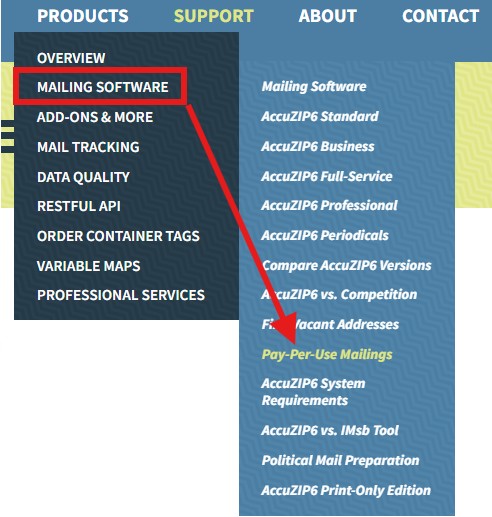
https://www.accuzip.com/products/mailing-software/pay-per-use-mailings/
This online service allows you to upload an address list (or generate an EDDM list) and prepare the address list for mailing.
If you use this service strictly for address validation and move update processing, you will download a .csv file of your updated data.
If you use this service for address data hygiene and postal presorting, you get the following:
- Container tags in PDF format
- Maildat electronic documentation files
- Postal Documentation in PDF format
- Postage Statement (PS Form 3600 or 3602, for example)
- Qualification Report
- CASS Certificate
- NCOALink Processing Summary Report (if National Change of Address was selected in the Data Quality options during the previous step)
- Print-ready CSV of the list you purchased, in presort order for maximum postal discounts. The presort-related fields included in the CSV file:
- ZIP+4’s in the zip field
- Endorsement information in the endorse field
- Intelligent mail barcode data in the imbarcode field, with the data in presort order for maximum postal discounts.
SECTION 1: UPLOAD LIST AND MAP FIELDS
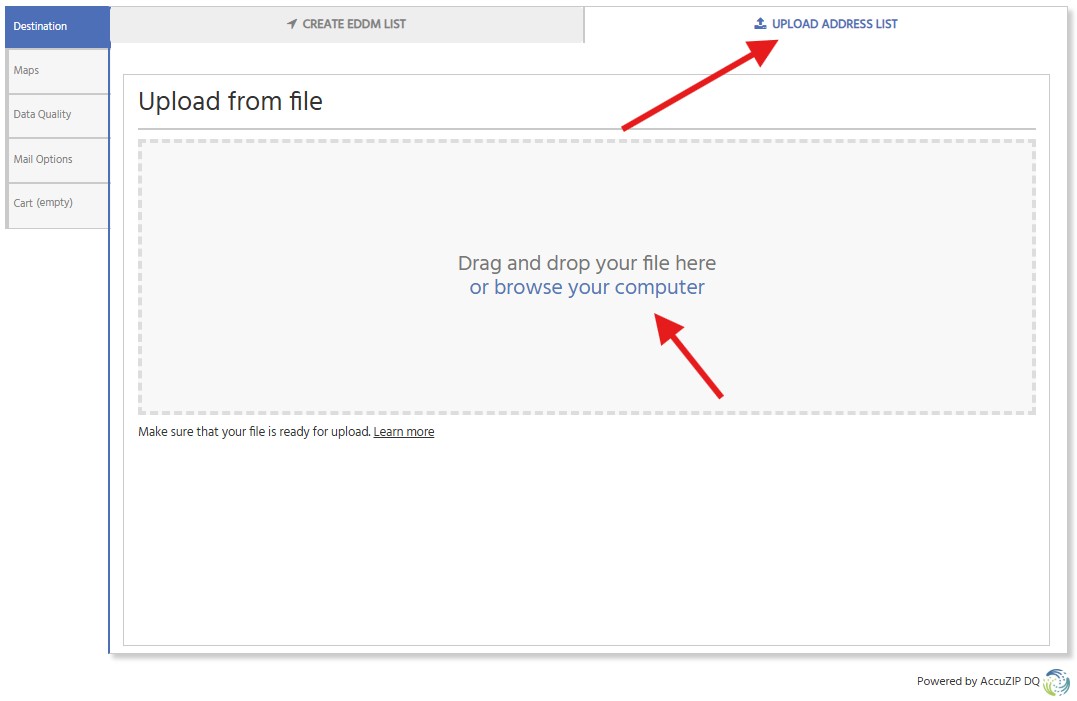
In the Destination tab on the left, select the Upload Address List tab on top of the page, then drag your address list, in CSV format, onto the screen.
NOTE: In your file name, make sure the only period in the name is for the file extension (.csv). Extra symbols, punctuation, and special characters could prevent the file from successfully uploading, which you'll notice by the file being stuck on Uploading for over 5 minutes.
Assign field names to your data, making sure of the following:
- The field named First is assigned to your full name or, if names are separated into First name and Last name fields, First is mapped to the first names and Last is mapped to the Last Name field
- Company is mapped to the company name fied
- Address is mapped to the address field
- If City, State, ZIP Code is in one field assign City to this field. Otherwise, assign City to the city name field, St to the state field, and ZIP to the ZIP Code field.
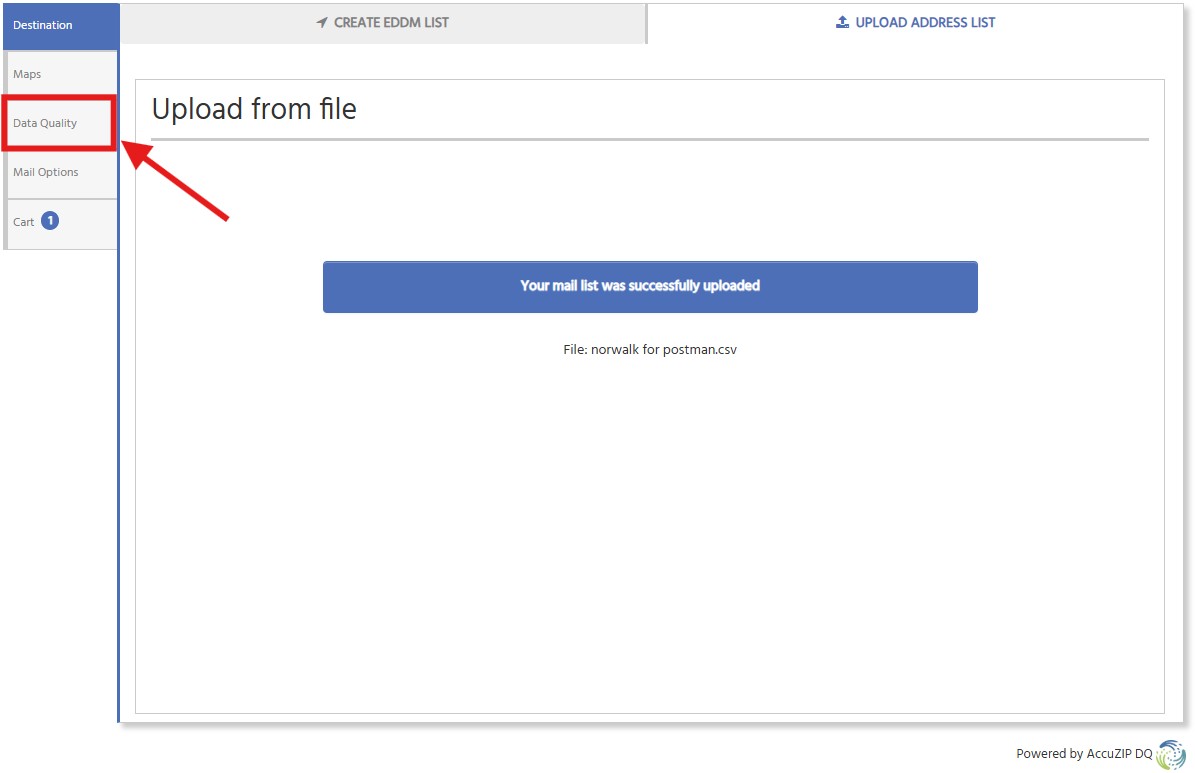
Click Save. When the list successfully uploads and displays a total count, move to the next step.
Once your file has uploaded, click on the Data Quality tab.
SECTION 2: DATA QUALITY OPTIONS
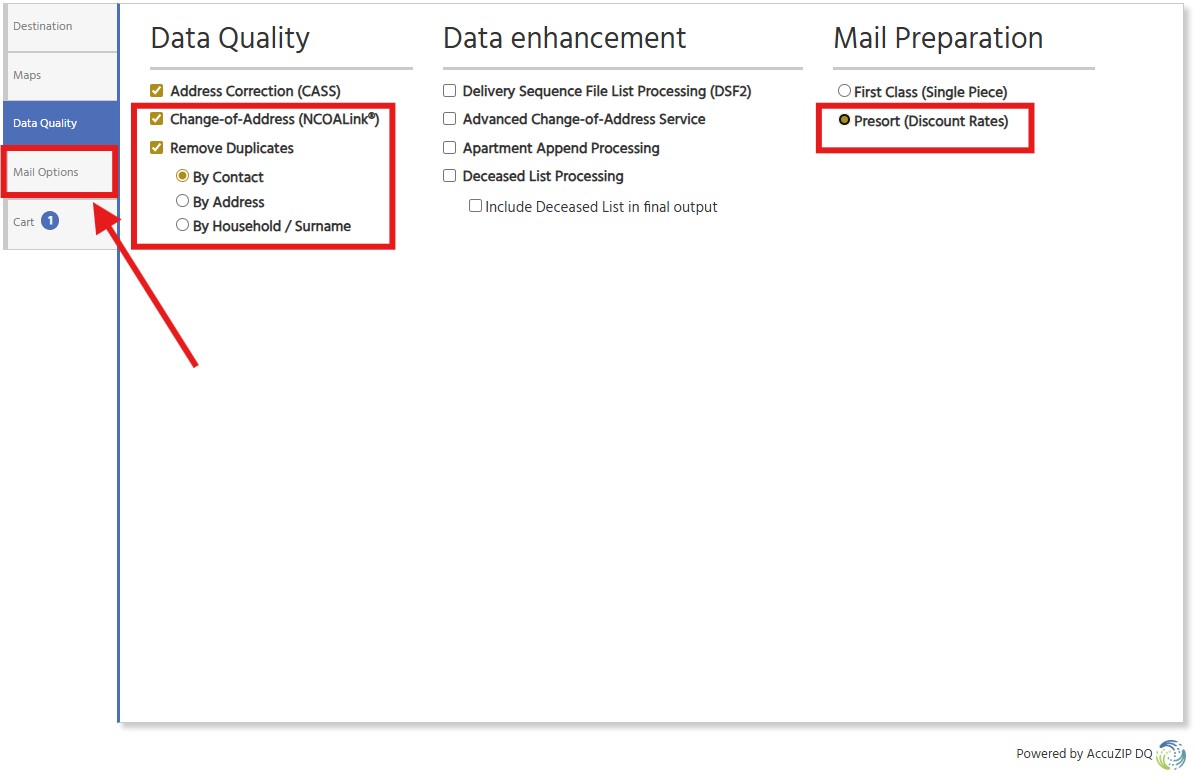
In the Data Quality column, make these selections:
- Leave Address Correction (CASS) checked. This is an essential part of getting low postage rates
- Select Change-of-Address if you would like to perform NCOALink move update processing on your address list (and mail to the new addresses of those who have moved).
- Select Remove Duplicates By Contact to mail to each unique person at an address.
- Select Remove Duplicates by Address to mail one piece to each address, even if there are different people at a single address.
In the Mail Preparation column, choose between two options:
- Choose First Class if you are not using this service for postal presorting.
- Choose Presort in order to prepare a mailing.
The Data Enhancement column allows you to add up to four enhancements to your data, such as Deceased Suppression, Walk Sequence (DSF2) append, etc. Choosing any or all of these options will be priced at an additional $0.001 per piece
Click on Mail Options on the left side.
SECTION 3: DETAILS RELATED TO YOUR MAILING
In the Mail Options area, start with the Mail Information section.
Everything with a red border must be completed, otherwise you won't be able to advance to the Cart.
For the Service Type, choose 270 for First Class and choose 271 for Standard Mail (aka Marketing Mail)
When you've completed this section, click on the Move Update Compliance section
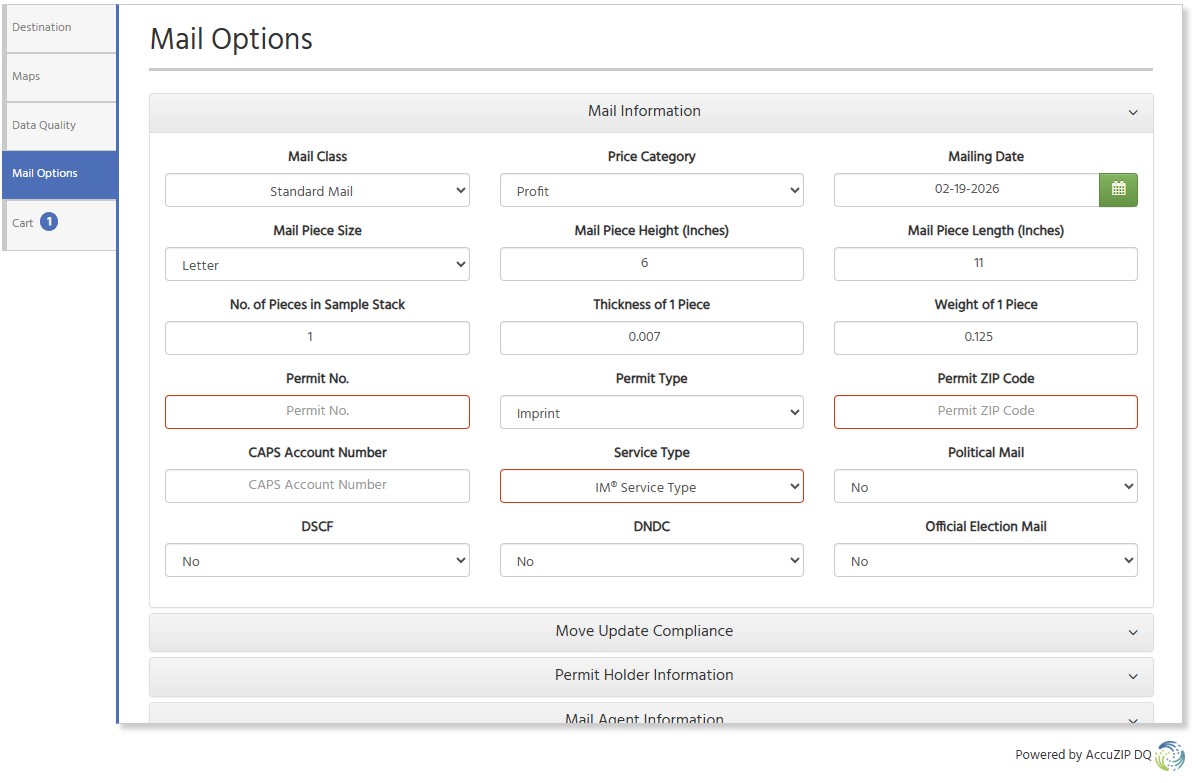
If you selected NCOALink Service in the Data Quality setup earlier, choose Yes here.
You'll choose Yes if you're mailing to the new address, or No if you chose not to use NCOALink, but will instead put "Or Current Occupant" (or some variation) or an Ancillary Service Endorsement on your piece.
Click on Permit Holder Information.
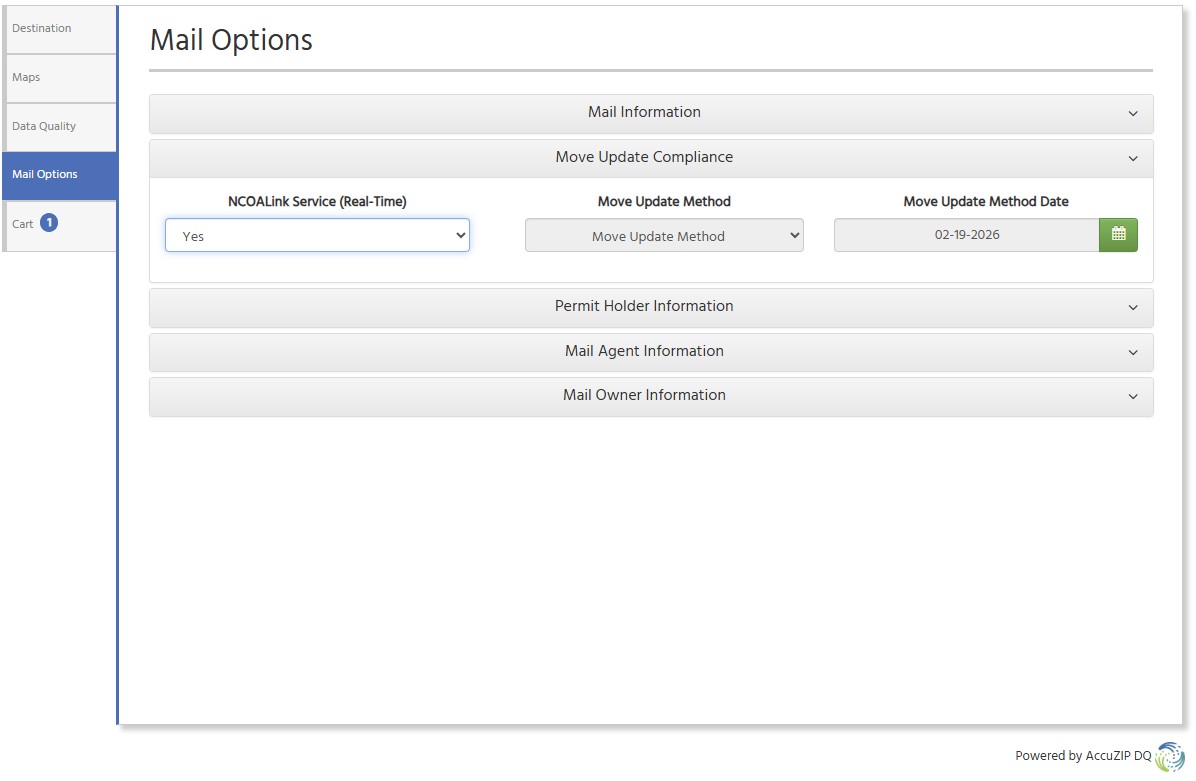
If you're unsure how to find your CRID and Mailer ID (MID), visit https://gateway.usps.com. After logging in, find Mailer ID in Favorite Places. This will advance you to the Mailer ID page, where you'll also see your CRID.
Enter the rest of the information in this section, then click on Mail Agent Information
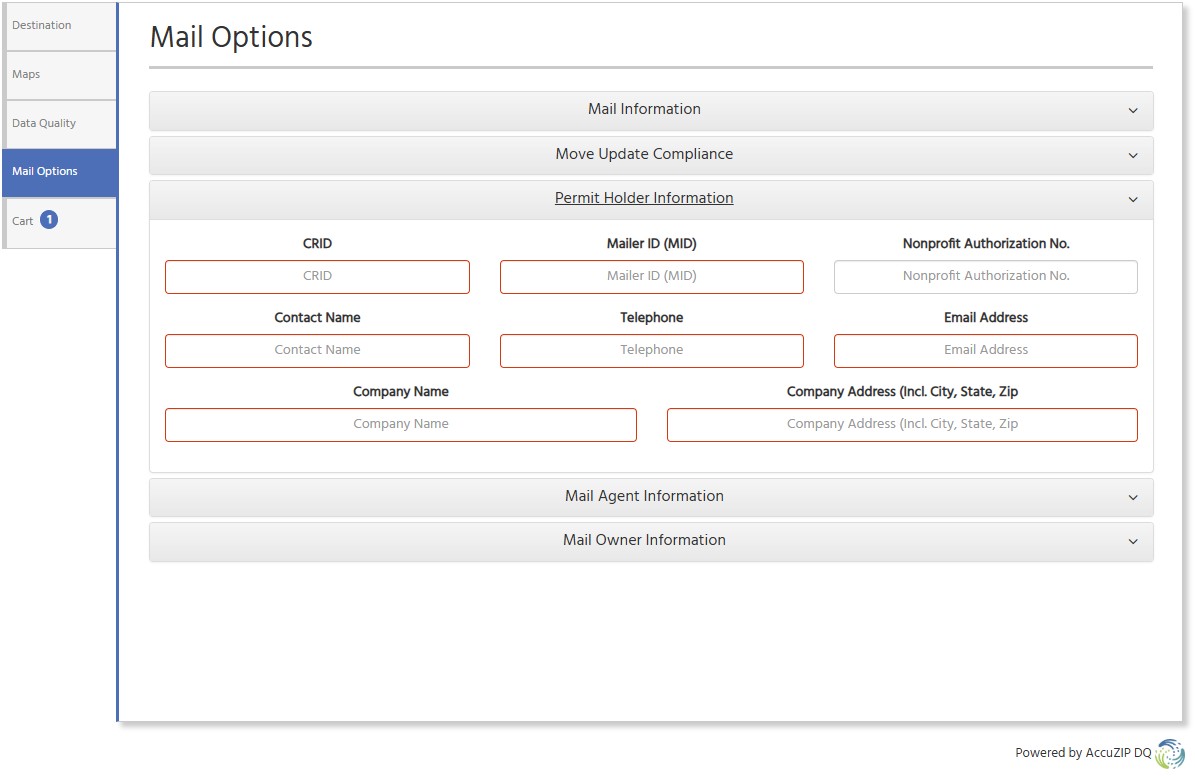
Check the box labeled Mail Agent is the Same As Permit Holder
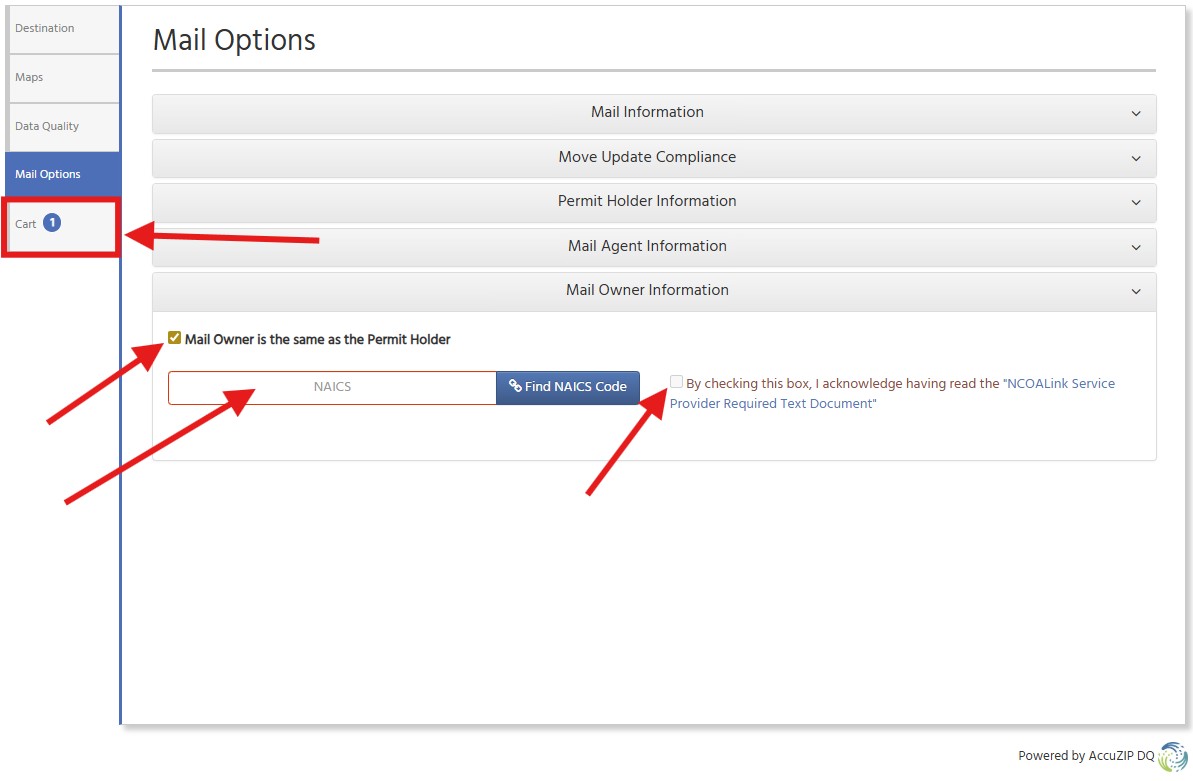
Click on Mail Owner Information
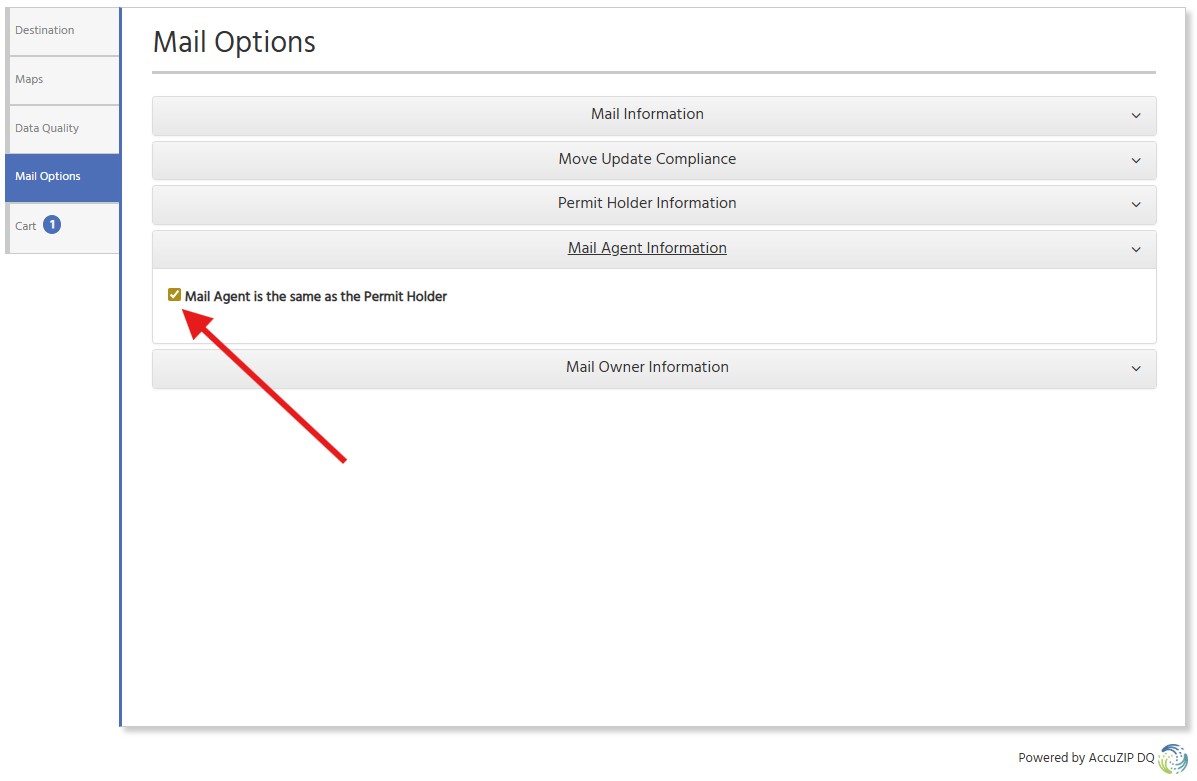
Check the box labeled Mail Owner is the Same As Permit Holder
Click on the NCOALink Required Text Document and read this. When finished, check the Acknowledgment box
If you're not sure what the NAICS Code should be, click on this technote: NAICS Codes and use a quick find (CTRL+F or Command+F) to search for the industry and its related NAICS code. Enter the NAICS Code.
Click on Cart
SECTION 4: PAYING FOR THE SERVICE
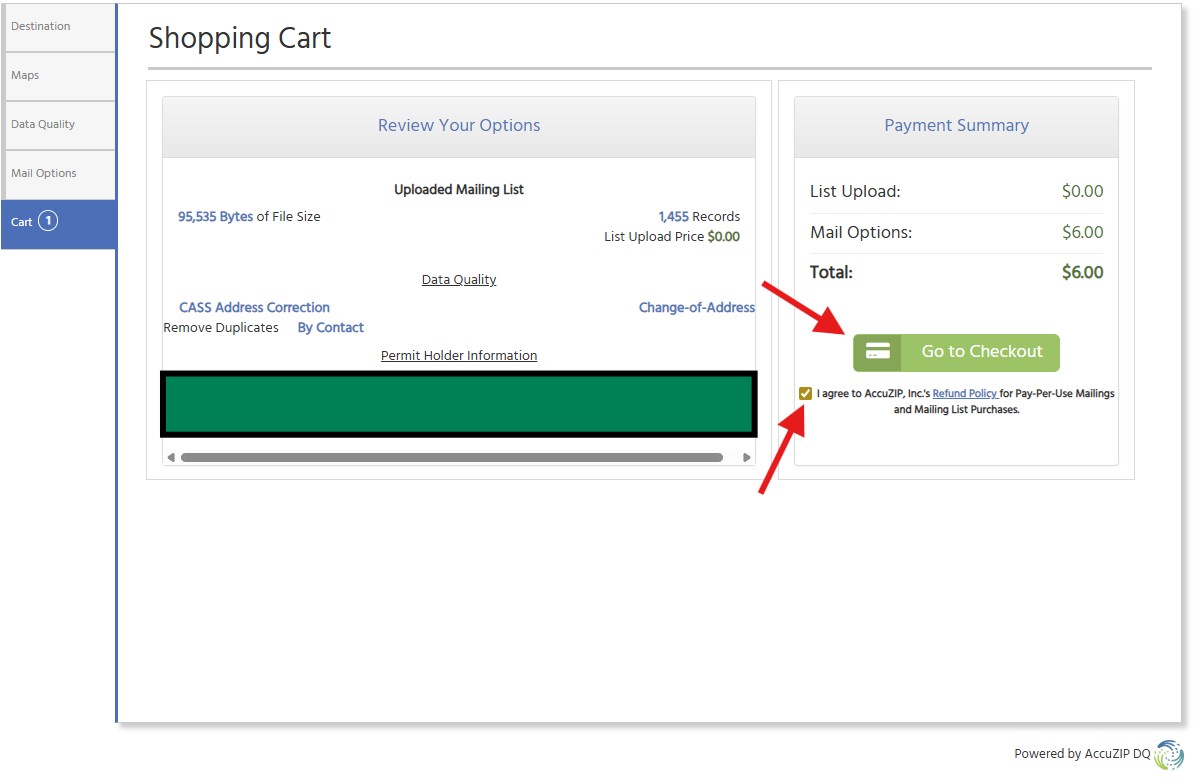
Click on the Refund Policy. If you agree to that policy, check the "I agree to AccuZIP's Refund Policy" box
WIth that box checked, you can click on Go To Checkout.
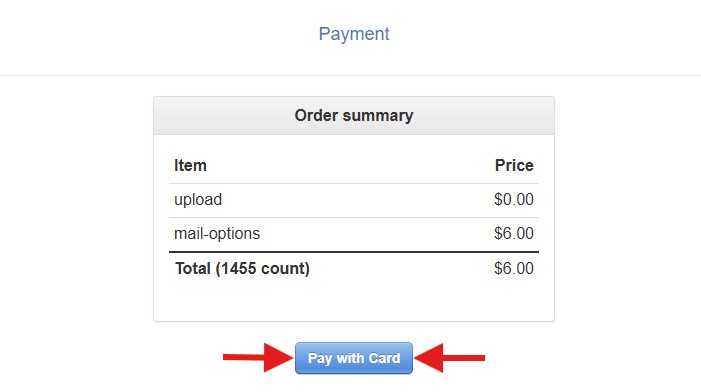
Click on Pay With Card
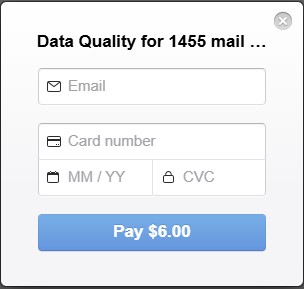
Enter the email address where a link to download presort folder and address list will be sent
Enter your Credit Card information, then click Pay
The process will begin on your screen, and once it has finished after several minutes, your status will say Finished. Now you'll be able to click on a Start Download button
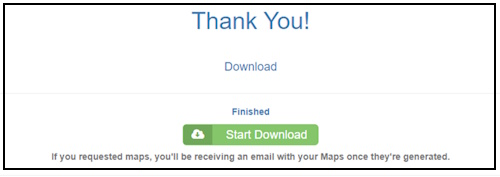
The email of this presort will come from noreply@iaccutrace.com with the Subject line: AccuZIP DQ List Purchase
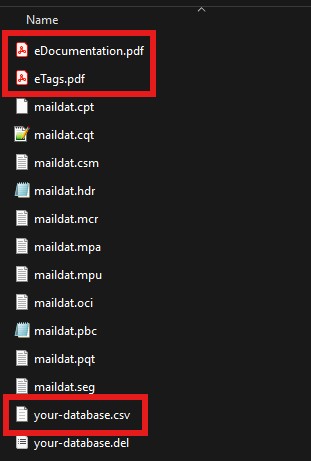
The contents will look like what you see below, with PDF files of your container tags and hard copy documentation. The print-ready, mail-merge .csv file will have the same name as the address list you had imported.
SECTION 5: SUBMITTING POSTAL PAPERWORK TO THE USPS AND ADDRESS PRINTING
SUBMIT PAPERWORK
Submit your postal paperwork using the Postal Wizard service at https://gateway.usps.com
Step by Step Instructions: How to use Postal Wizard for Electronic Documentation Submission
Once you've submitted your paperwork electronically, you'll be able to print your Confirmation Page with the Scan At Acceptance barcode. You'll take this with your mail to your BMEU where your permit is held
ADDRESS PRINTING
If you need a solution for printing addresses onto labels or onto the mail piece, and you currently do not have software that can handle this, try using Microsoft Word’s Mail Merge Wizard to handle the job.
USPS Resources for addressing mail pieces:
- Proper Delivery Address Placement for letters (source: USPS): https://about.usps.com/publications/pub25/pub25_ch1_006.htm
- Proper Address Placement for Flats: https://pe.usps.com/text/dmm300/202.htm#ep1082784
- Intelligent Mail Barcode Font Download: https://postalpro.usps.com/IMbFontDownload-presentation
For instant help, click on Chat Now, then choose the PPU Page Department
Read All about each AccuZIP6 Edition
-

All-In-One Postal Software
-

Unlimited NCOALink Move Update Processing
-

Direct Mail Processing with IMB Tracing®
-

Ideal for Large Volume Mailers Who Palletize